
Sound booster extension for ChromeA volume knob for every tab.
Boost quiet videos, streams, music and calls up to 600% — one tab at a time — with a bass booster, equalizer, presets and a look-ahead limiter that keeps it loud without distortion.
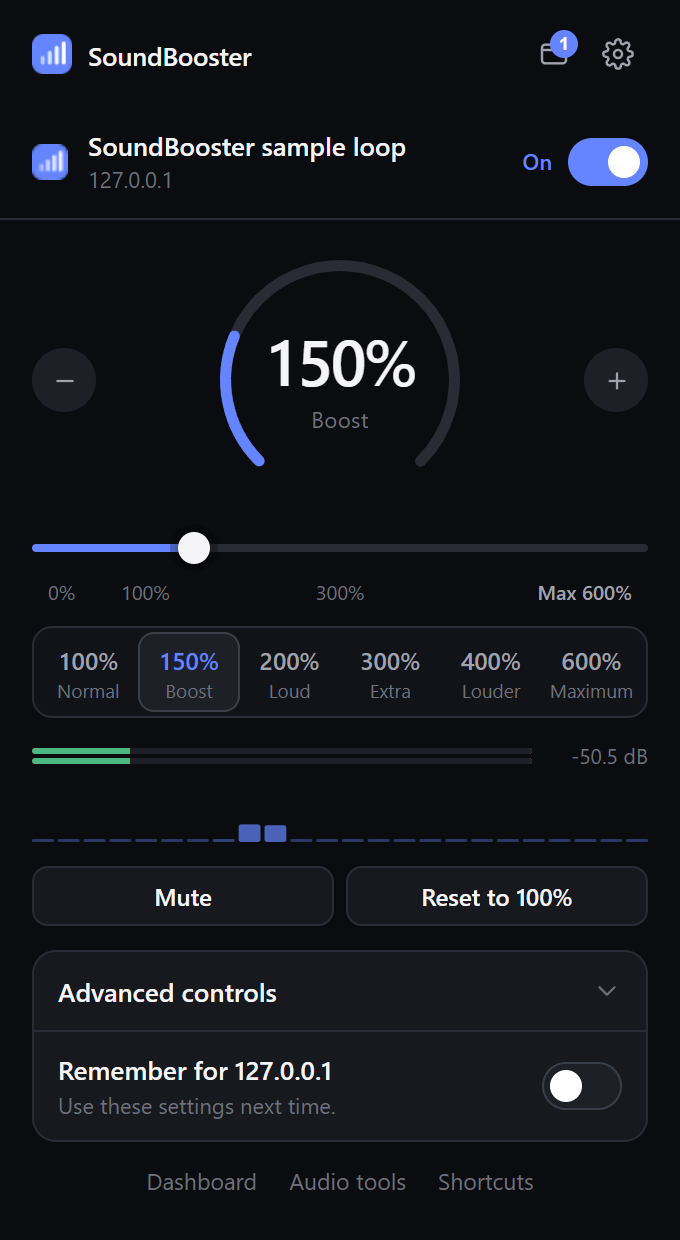
Screenshots
Simple up front. Detailed when you want it.
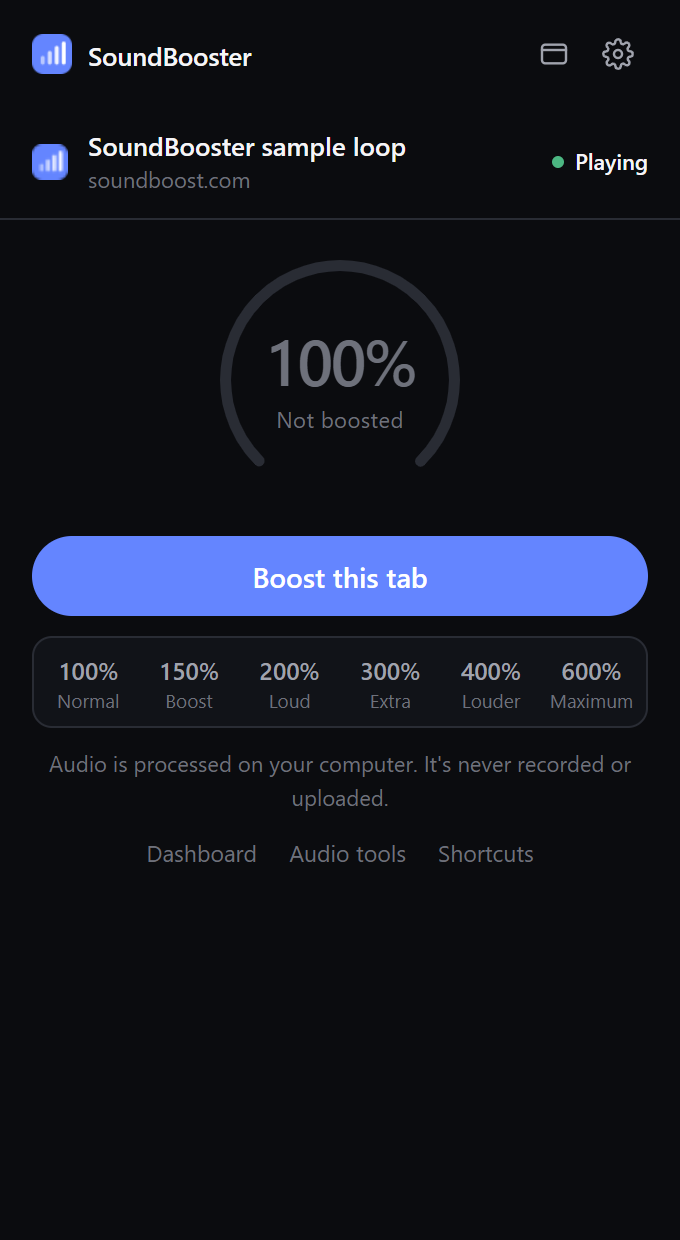
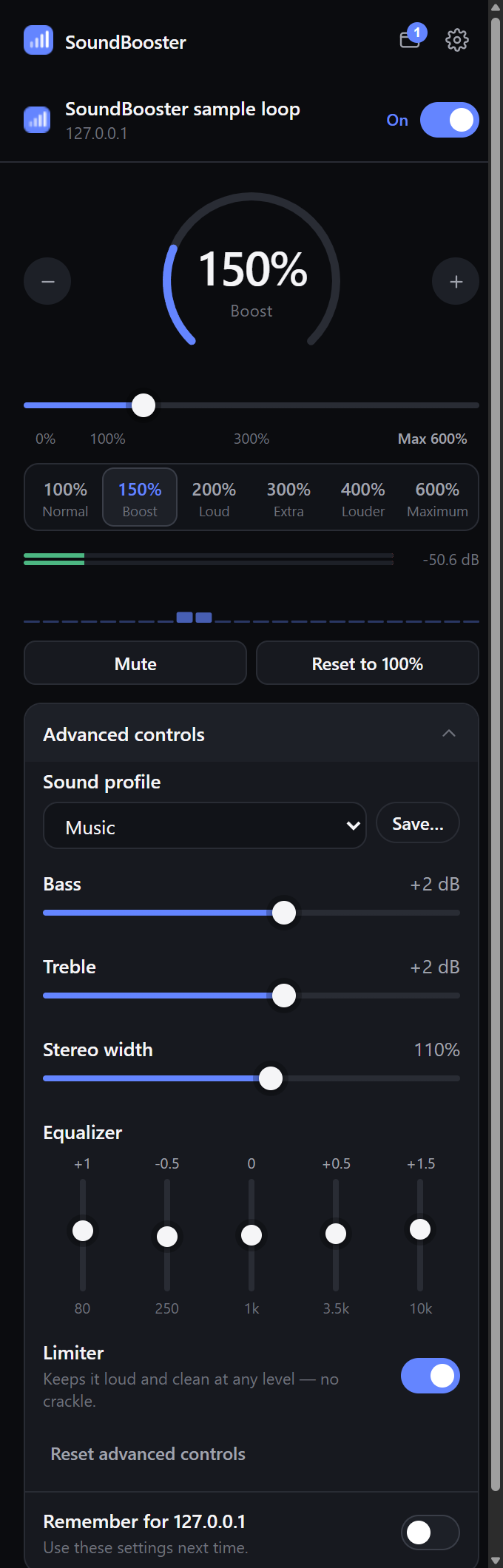
Screenshots of the real extension, captured during automated testing with a test tone.
Install
Coming soon to the Chrome Web Store.
SoundBooster is on its way to the Chrome Web Store. Once it's live, you'll add it in one click from this page and it will update automatically.
Features
Everything in the popup works.
- Per-tab volume up to 600%
Only the tab you choose gets louder — never your whole system.
- Five one-click presets
100% Normal, 150% Boost, 200% Loud, 300% Extra, 500% Maximum.
- Bass, treble & 5-band EQ
Shape the sound live while it plays.
- Stereo width
Narrow to mono for a single earbud, or widen for movies and games.
- Limiter
A clean look-ahead limiter: 600% stays loud without clipping or distortion.
- Sound profiles
Headphones, Movies, Music, Gaming, Podcasts, Quiet dialogue, Bass-heavy — or save your own.
- Per-site memory
Save a volume for YouTube and a different one for your music site.
- Keyboard shortcuts
Alt+Shift+↑/↓ to change volume, Alt+Shift+M to mute, Alt+Shift+0 to reset.
- Light and dark mode
Matches the website. Dark is the default.
chrome://extensions/shortcutsPrivacy, in plain terms.
SoundBooster asks for four Chrome permissions and uses each for one thing:
tabCaptureReceive the audio of a tab you choose to boost, so it can be amplified. Only after you click Boost or use a shortcut.
activeTabRead the title and address of the tab in front when you open SoundBooster — to show which tab you're controlling and to remember per-site settings.
offscreenRun the audio engine in a hidden extension page, as Chrome requires for Manifest V3.
storageSave your preferences, sound profiles and per-site volumes in this browser.
FAQ
Questions about the extension
Why does SoundBooster need to capture tab audio?
Chrome doesn't let extensions change another tab's volume directly. SoundBooster uses Chrome's tabCapture API to receive the tab's audio, amplifies it with the Web Audio API, and plays it back. The audio never leaves your computer and is never recorded.
Why can't I boost some pages?
Chrome blocks capture on its own pages (chrome://…, the New Tab page, settings) and on the Chrome Web Store. Some sites with protected (DRM) video may also play silently or refuse capture — SoundBooster doesn't try to bypass that.
Does it change my computer's volume?
No. It only affects the tabs you boost. Your system volume still applies on top.
What happens when I switch or close tabs?
Each boosted tab keeps its own settings. The popup shows the tab in front, and the tab list lets you adjust any other boosted tab. Closing a tab or pressing Stop releases it and restores its normal audio.
Why does Chrome show a “sharing this tab” indicator?
Chrome shows a capture indicator for any tab whose audio an extension is capturing. It disappears as soon as you press Stop in SoundBooster or close the tab.
Is there audio delay?
Capturing and processing adds a few milliseconds of latency. It's rarely noticeable, but you may see a tiny lip-sync offset on some videos.